> ## Documentation Index
> Fetch the complete documentation index at: https://docs.proddyai.app/llms.txt
> Use this file to discover all available pages before exploring further.
# Account Settings
> Description: Manage your profile, privacy, and account preferences
### Overview
In Account Settings, you can set up and adjust these settings:
* Your name
* Account Details
* Privacy Settings
* Delete account
### **Profile**
To update your default personal avatar with a custom one:
1. In the upper-right corner, click your personal avatar.
2. Select **Account Settings**.
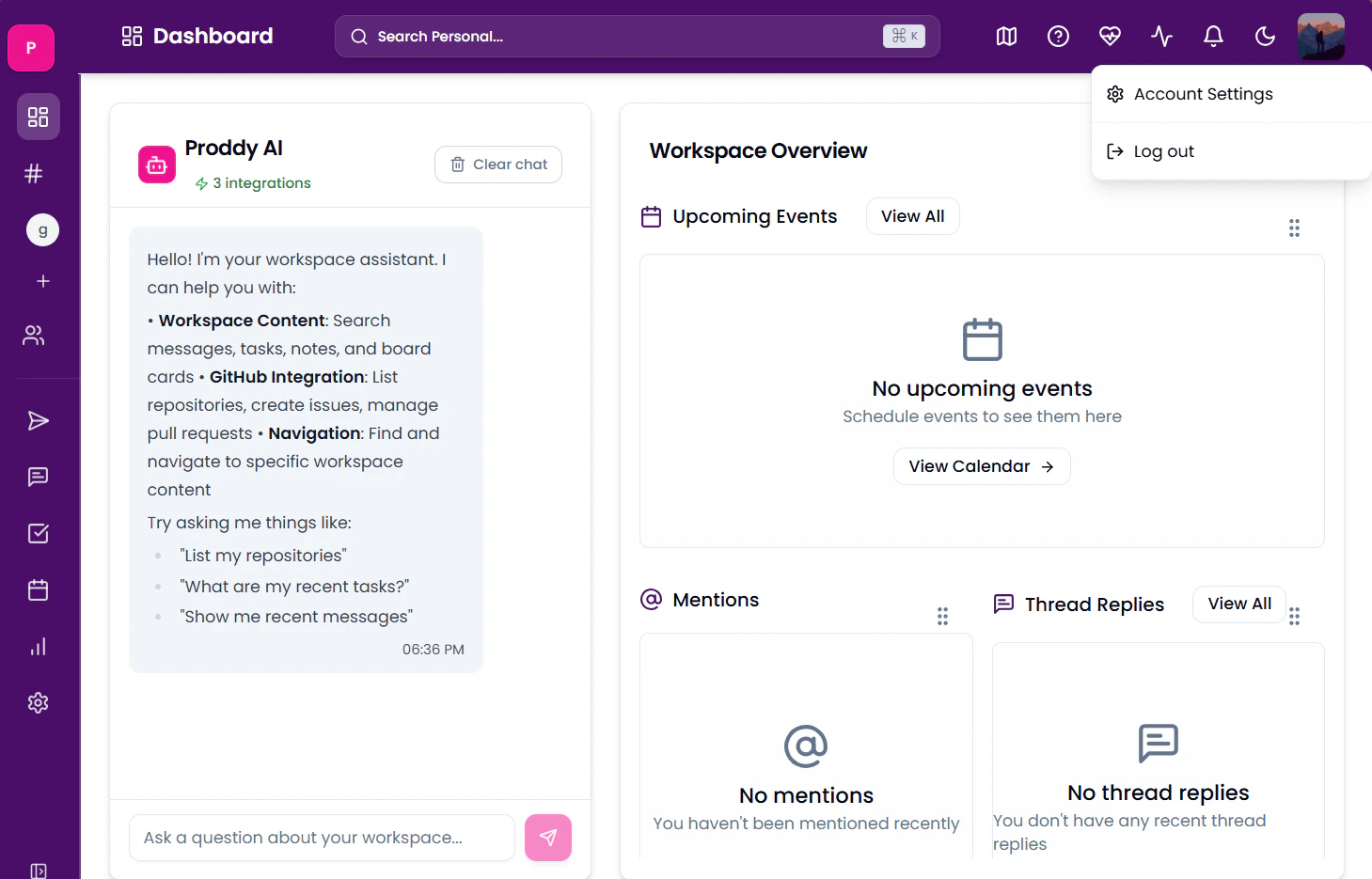 3. In the **Profile** section, click your default avatar.
4. Click the camera icon to upload an image.
If you've previously uploaded an image, you'll also have the option to remove it. Find the delete icon at the top right of the banner to delete.
The optimal dimensions to upload a logo are 720 x 720 pixels.
3. In the **Profile** section, click your default avatar.
4. Click the camera icon to upload an image.
If you've previously uploaded an image, you'll also have the option to remove it. Find the delete icon at the top right of the banner to delete.
The optimal dimensions to upload a logo are 720 x 720 pixels.
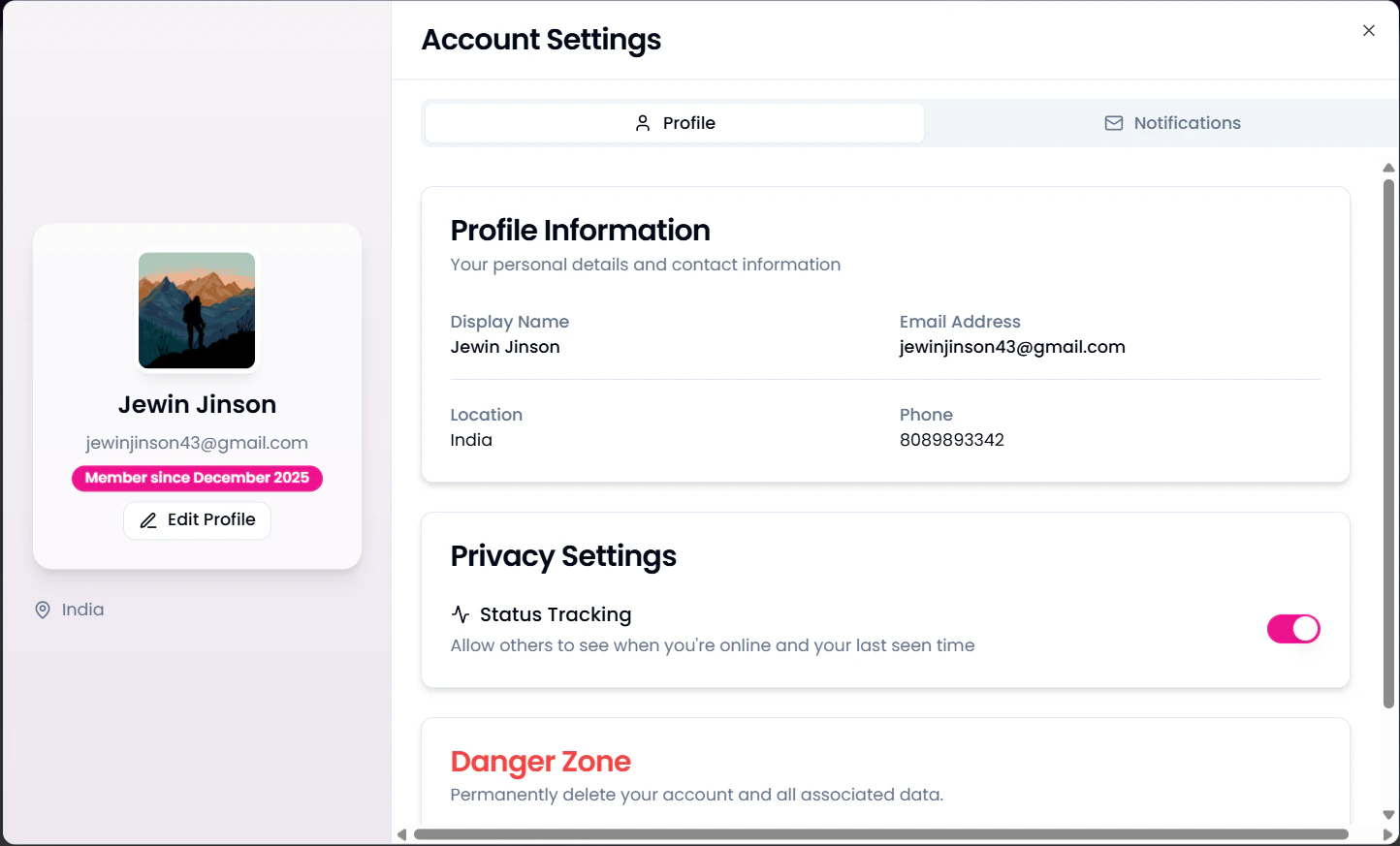 You can also set/change your **Bio, Location, Website, Phone Number** in the Profile section.
1. In the upper-right corner, click your personal avatar.
2. Select **Account Settings**.
3. In the **Profile** section, under the avatar, find the **Edit Profile** option.
4. Here you can edit your ****Bio, Location, Phone Number, andWebsite.****
### **Privacy Settings**
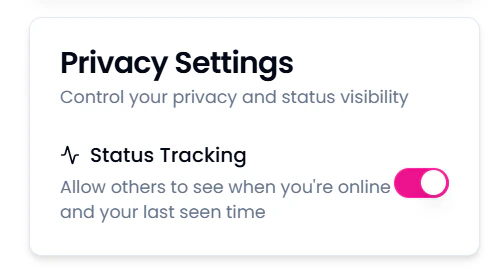
This setting controls your privacy and status visibility. By disabling it, you choose to not display when you are online and your last seen. To change it,
* In the upper-right corner, click your personal avatar.
* Select **Account Settings**.
* In the **Profile** section, either enable or disable the settings.
You can also set/change your **Bio, Location, Website, Phone Number** in the Profile section.
1. In the upper-right corner, click your personal avatar.
2. Select **Account Settings**.
3. In the **Profile** section, under the avatar, find the **Edit Profile** option.
4. Here you can edit your ****Bio, Location, Phone Number, andWebsite.****
### **Privacy Settings**
This setting controls your privacy and status visibility. By disabling it, you choose to not display when you are online and your last seen. To change it,
* In the upper-right corner, click your personal avatar.
* Select **Account Settings**.
* In the **Profile** section, either enable or disable the settings.
 ### **Logging out**
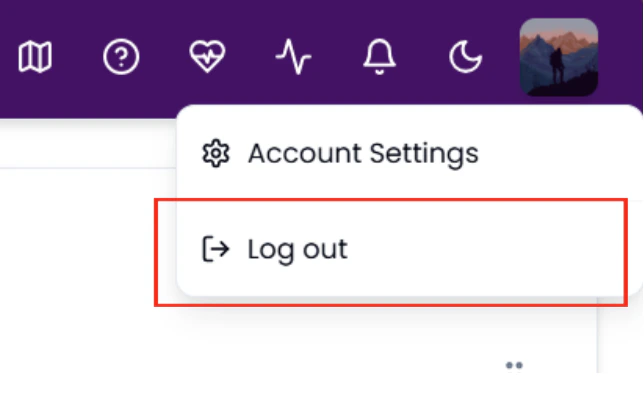
1. Click on your personal avatar at the top right of the workspace.
2. Click on Log out
### **Logging out**
1. Click on your personal avatar at the top right of the workspace.
2. Click on Log out
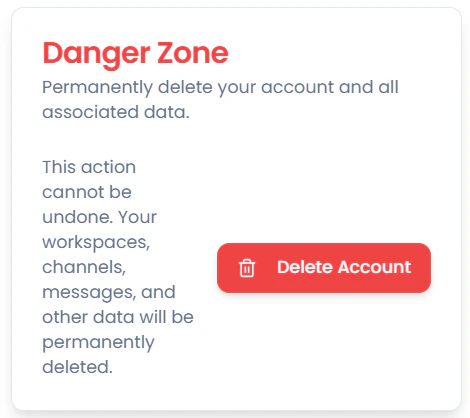
 ### **Delete Account**
This action permanently deletes your account and all associated data.
**Caution**: This action cannot be undone. All your data, including workspaces, messages, channels and other data, will be permanently deleted.
To delete your account,
1. In the upper-right corner, click your personal avatar.
2. Select **Account Settings**.
3. In the **Profile** section, click on **Delete Workspace.**
### **Delete Account**
This action permanently deletes your account and all associated data.
**Caution**: This action cannot be undone. All your data, including workspaces, messages, channels and other data, will be permanently deleted.
To delete your account,
1. In the upper-right corner, click your personal avatar.
2. Select **Account Settings**.
3. In the **Profile** section, click on **Delete Workspace.**
 ### **Notification Settings**
You can control the notifications you receive from these settings. To access it:
1. In the upper-right corner, click your personal avatar.
2. Select **Account Settings**.
3. In the \*\*Notifications \*\*section, enable or disable required settings.
### **Notification Settings**
You can control the notifications you receive from these settings. To access it:
1. In the upper-right corner, click your personal avatar.
2. Select **Account Settings**.
3. In the \*\*Notifications \*\*section, enable or disable required settings.
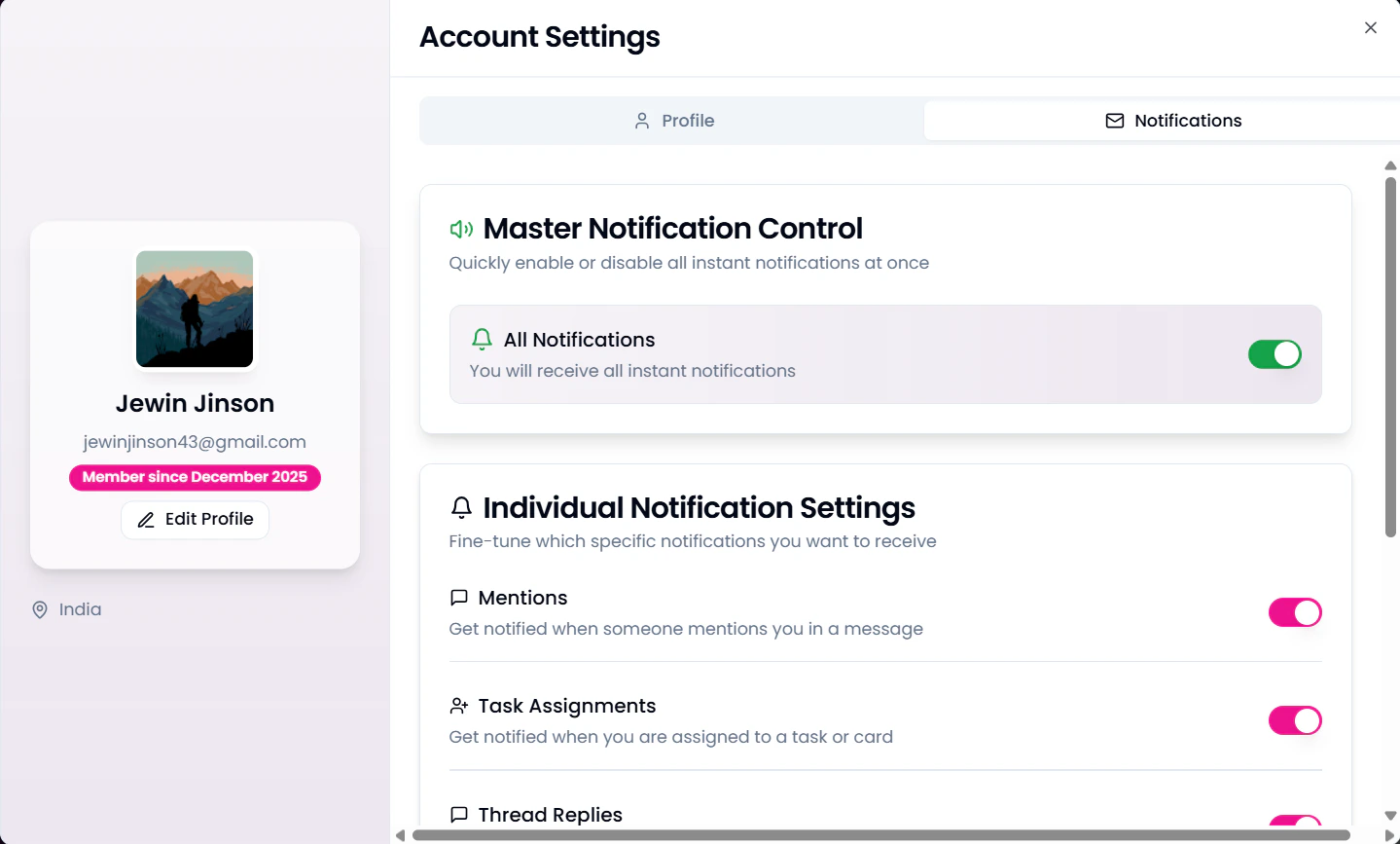 You can also control the following notification settings related to:
* Mentions
* Task Assignments
* Thread Replies
* Direct Messages
* Weekly Digest
**Note**: These settings control email notifications only. You can still receive in-app notifications regardless of these settings. Unsubscribe links are included in all emails.
You can also control the following notification settings related to:
* Mentions
* Task Assignments
* Thread Replies
* Direct Messages
* Weekly Digest
**Note**: These settings control email notifications only. You can still receive in-app notifications regardless of these settings. Unsubscribe links are included in all emails.