> ## Documentation Index
> Fetch the complete documentation index at: https://docs.proddyai.app/llms.txt
> Use this file to discover all available pages before exploring further.
# Members
> Members represent the people who are part of a workspace. This section allows workspace owners and admins to manage team access, assign roles, invite or remove members, and enable direct collaboration through channels and direct messages.
## **Accessing Members**
To view workspace members:
1. Open the workspace.
2. Click on **Manage** from the left sidebar.
3. Select **Members**.
The Members page will display a list of all users currently part of the workspace
## Adding Members
Accessing the Invite Option
To invite members:
1. Open the workspace.
2. Click on **Manage** from the left sidebar.
3. Select **Members**.
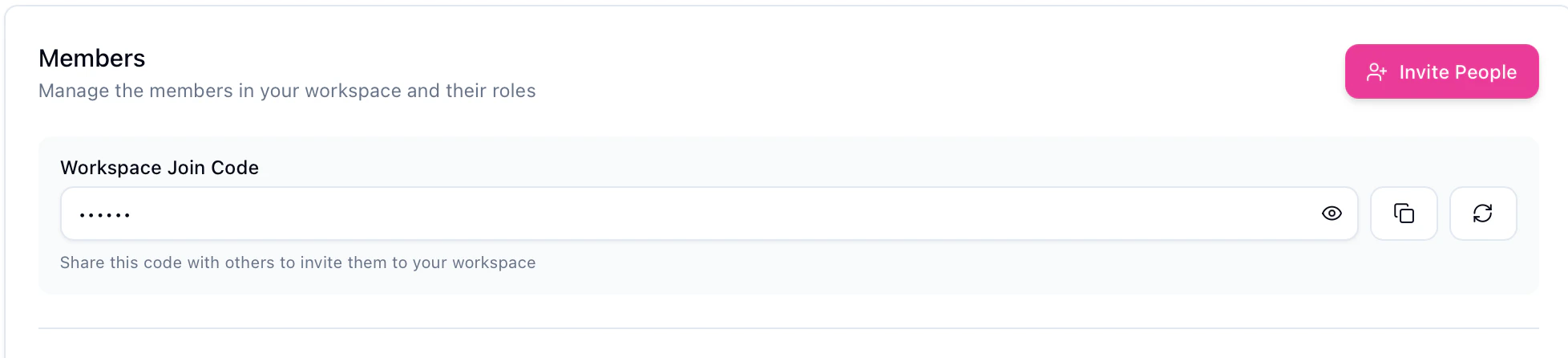
4. Click on the **Invite People** button.
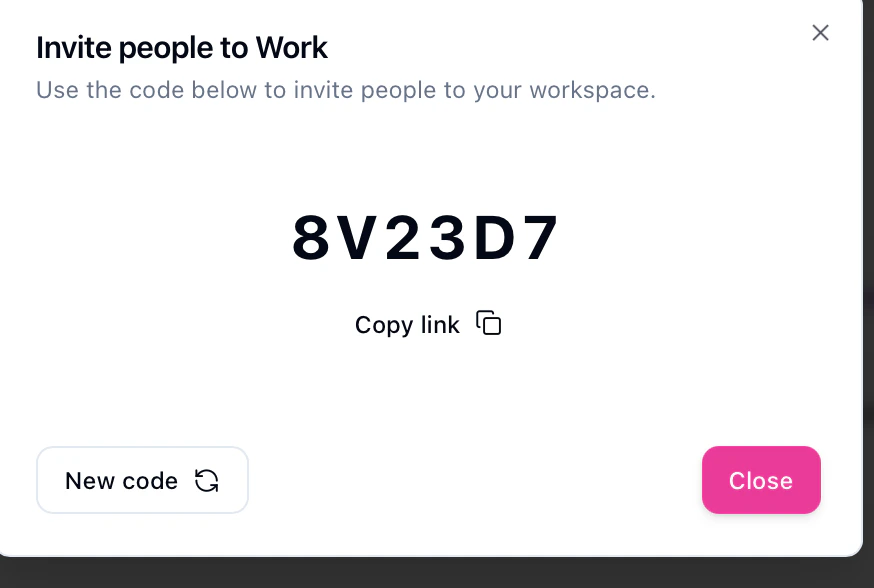
5. An invite dialog box will appear with link and code
6. Copy the **workspace join code** and **invite link**.
7. Share the code and link with the person you want to invite.
Once the recipient uses the code or link, they will be added to the workspace automatically.
 ## **Removing a Member**
To remove a member from the workspace:
1. Navigate to **Manage → Members**.
2. Locate the member you want to remove.
3. Click on the **delete (trash) icon** next to the member.
4. Confirm the action (if prompted).
The member will lose access to the workspace immediately.
## **Changing a Member’s Role**
To change a member’s role:
1. Open the workspace.
2. Navigate to **Manage → Members**.
3. Locate the member whose role you want to change.
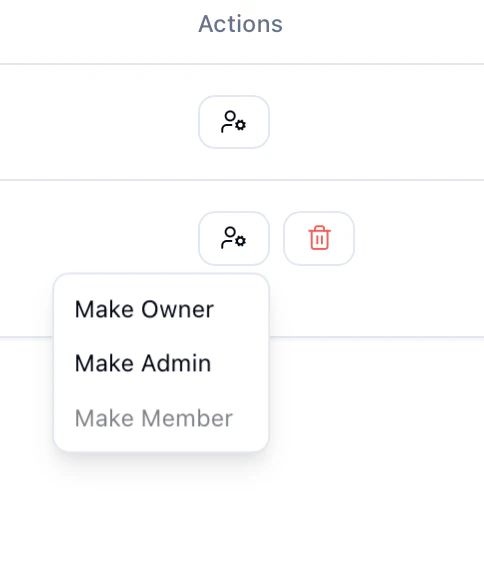
4. Click on the **role/action menu** next to the member.
5. Select one of the available options:
* **Make Owner**
* **Make Admin**
* **Make Member**
The selected role will be applied immediately.
## **Removing a Member**
To remove a member from the workspace:
1. Navigate to **Manage → Members**.
2. Locate the member you want to remove.
3. Click on the **delete (trash) icon** next to the member.
4. Confirm the action (if prompted).
The member will lose access to the workspace immediately.
## **Changing a Member’s Role**
To change a member’s role:
1. Open the workspace.
2. Navigate to **Manage → Members**.
3. Locate the member whose role you want to change.
4. Click on the **role/action menu** next to the member.
5. Select one of the available options:
* **Make Owner**
* **Make Admin**
* **Make Member**
The selected role will be applied immediately.
 ### **Starting a Direct Message**
To start a direct message with a member:
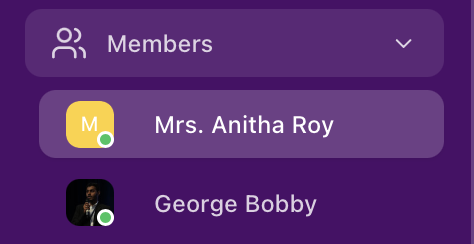
1. Locate the **Members list** in the left sidebar.
2. Click on the member’s name you want to message.
3. A direct message chat will open automatically.
You can now send messages to the selected member.
### **Starting a Direct Message**
To start a direct message with a member:
1. Locate the **Members list** in the left sidebar.
2. Click on the member’s name you want to message.
3. A direct message chat will open automatically.
You can now send messages to the selected member.