> ## Documentation Index
> Fetch the complete documentation index at: https://docs.proddyai.app/llms.txt
> Use this file to discover all available pages before exploring further.
# Productivity
> The Calendar helps users visualize tasks, messages, and board cards in a monthly timeline. It provides a clear overview of upcoming work, deadlines, and conversations in one place.
## **Open the Calendar**
To open the Calendar:
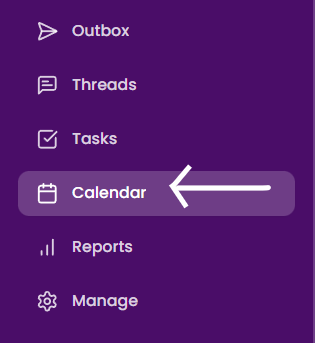
1. Click **Calendar** from the left sidebar.
2. The Calendar opens in **monthly view** by default.
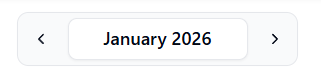
3. Use the **left and right arrows** at the top to navigate between months.
 ## **Calendar Overview**
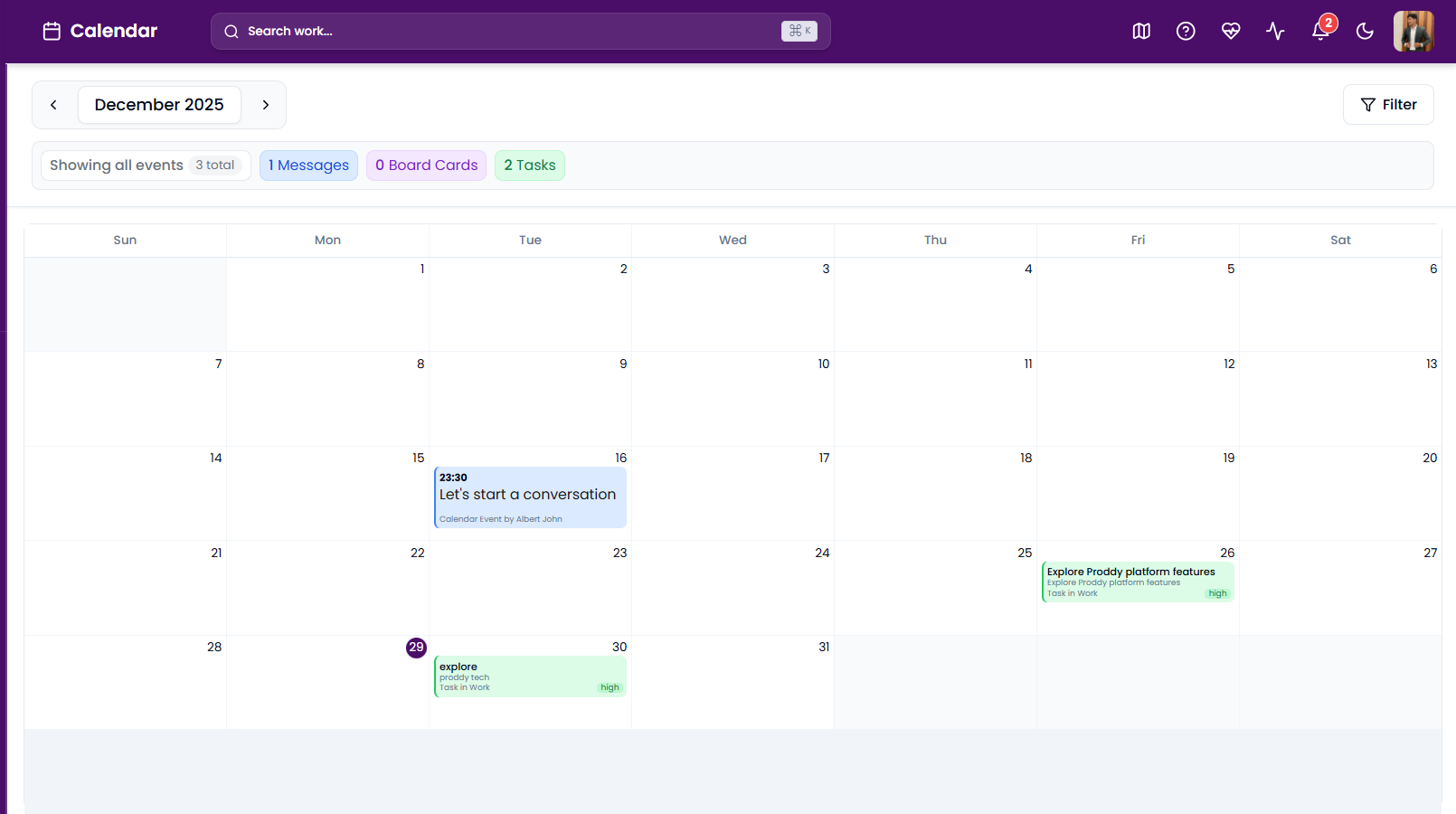
The Calendar displays all scheduled items for the selected month.\
At the top, users can see a summary of events currently visible:
* Showing all events
* Messages
* Board Cards
* Tasks
Each item appears on its respective date.
## **Calendar Overview**
The Calendar displays all scheduled items for the selected month.\
At the top, users can see a summary of events currently visible:
* Showing all events
* Messages
* Board Cards
* Tasks
Each item appears on its respective date.
 ## **Calendar Item Types**
Calendar events are color-coded for easy identification:
* **Blue** – Messages
* **Purple** – Board Cards
* **Green** – Tasks
This helps users quickly distinguish between different types of work.
## **View Tasks in Calendar**
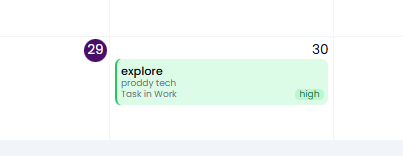
Tasks with due dates automatically appear on the Calendar.
Each task shows:
* Task title
* Category (for example: Work)
* Priority (Low, Medium, High)
This allows users to track deadlines visually without opening the Tasks page.
## **Calendar Item Types**
Calendar events are color-coded for easy identification:
* **Blue** – Messages
* **Purple** – Board Cards
* **Green** – Tasks
This helps users quickly distinguish between different types of work.
## **View Tasks in Calendar**
Tasks with due dates automatically appear on the Calendar.
Each task shows:
* Task title
* Category (for example: Work)
* Priority (Low, Medium, High)
This allows users to track deadlines visually without opening the Tasks page.
 ## **View Messages in Calendar**
Messages that are scheduled or created with a time appear as calendar events.
This helps users:
* Track important conversations
* See when discussions were initiated
* Plan follow-ups easily
## **Add Calendar Event from Chat**
Proddy allows you to create calendar events directly from chat messages, making it easy to schedule conversations, reminders, or follow-ups without leaving the chat.
### **Create a calendar event from chat**
1. Open any **channel or direct chat**.
2. Type or select the message you want to schedule.
3. Click the **Calendar icon** in the chat input toolbar.
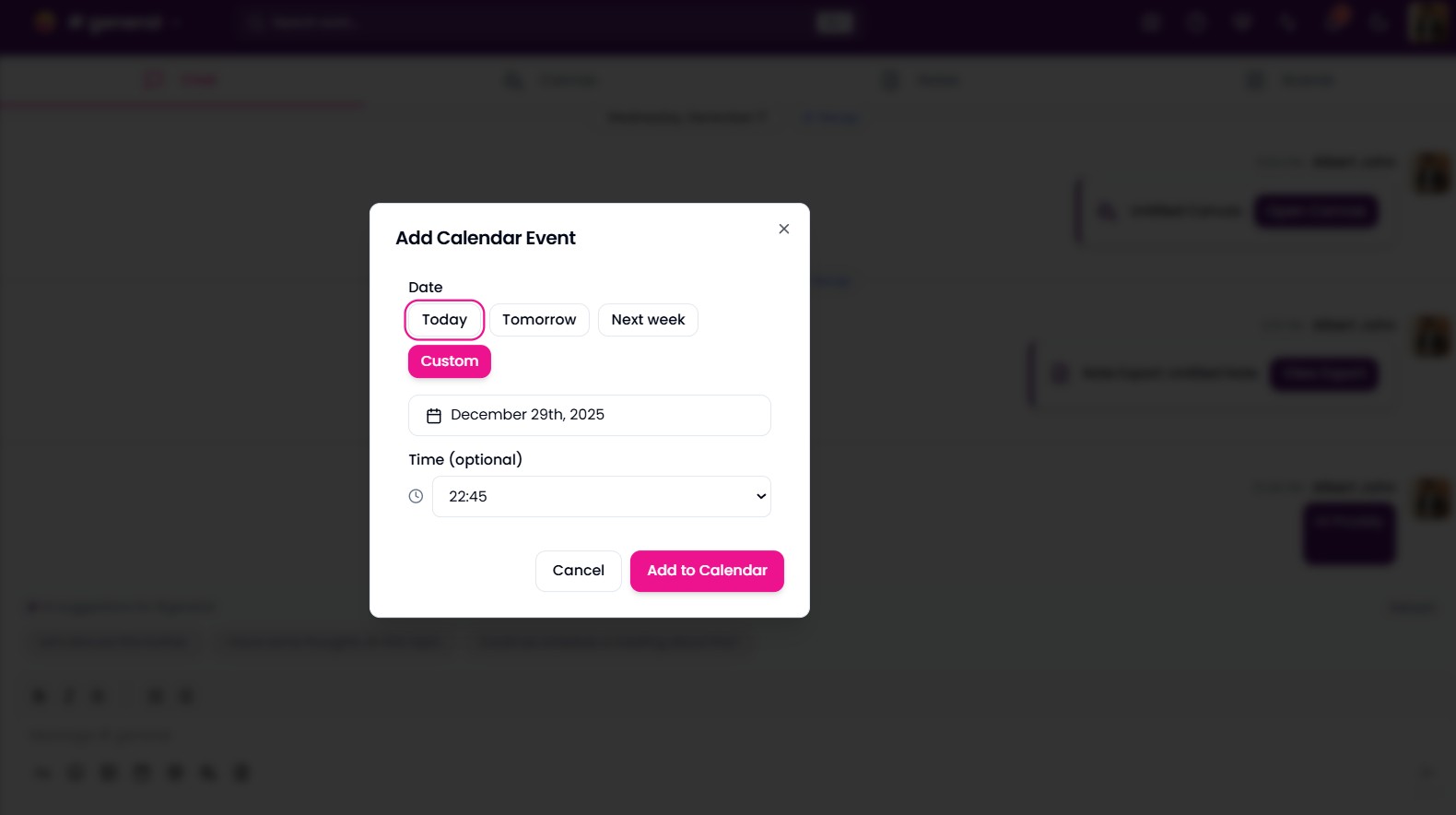
4. The **Add Calendar Event** modal will open.
5. Choose a date using quick options like:
* **Today**
* **Tomorrow**
* **Next week**
* Or select **Custom** to pick a specific date.
6. (Optional) Set a **time** for the event.
7. Click **Add to Calendar**.
## **View Messages in Calendar**
Messages that are scheduled or created with a time appear as calendar events.
This helps users:
* Track important conversations
* See when discussions were initiated
* Plan follow-ups easily
## **Add Calendar Event from Chat**
Proddy allows you to create calendar events directly from chat messages, making it easy to schedule conversations, reminders, or follow-ups without leaving the chat.
### **Create a calendar event from chat**
1. Open any **channel or direct chat**.
2. Type or select the message you want to schedule.
3. Click the **Calendar icon** in the chat input toolbar.
4. The **Add Calendar Event** modal will open.
5. Choose a date using quick options like:
* **Today**
* **Tomorrow**
* **Next week**
* Or select **Custom** to pick a specific date.
6. (Optional) Set a **time** for the event.
7. Click **Add to Calendar**.
 ## **Filter Calendar Events**
To filter calendar items:
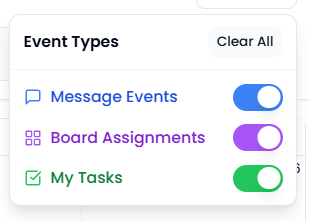
1. Click the **Filter** button on the top-right.
2. Select what you want to view:
* Messages
* Board Cards
* Tasks
3. The Calendar updates instantly based on the selected filters.
Filtering helps users focus only on relevant events.
## **Filter Calendar Events**
To filter calendar items:
1. Click the **Filter** button on the top-right.
2. Select what you want to view:
* Messages
* Board Cards
* Tasks
3. The Calendar updates instantly based on the selected filters.
Filtering helps users focus only on relevant events.