> ## Documentation Index
> Fetch the complete documentation index at: https://docs.proddyai.app/llms.txt
> Use this file to discover all available pages before exploring further.
# Outbox
> The Outbox in Proddy acts as a centralized log of all messages, exports, and actions sent from different parts of the workspace. It helps users track what has been shared, exported, or triggered across channels and features.
## **What you’ll see in Outbox**
The Outbox displays:
* Messages sent in channels
* Note exports (HTML / PDF / JSON / Markdown)
* Canvas shares
* Calendar-triggered messages
* System-generated activity entries
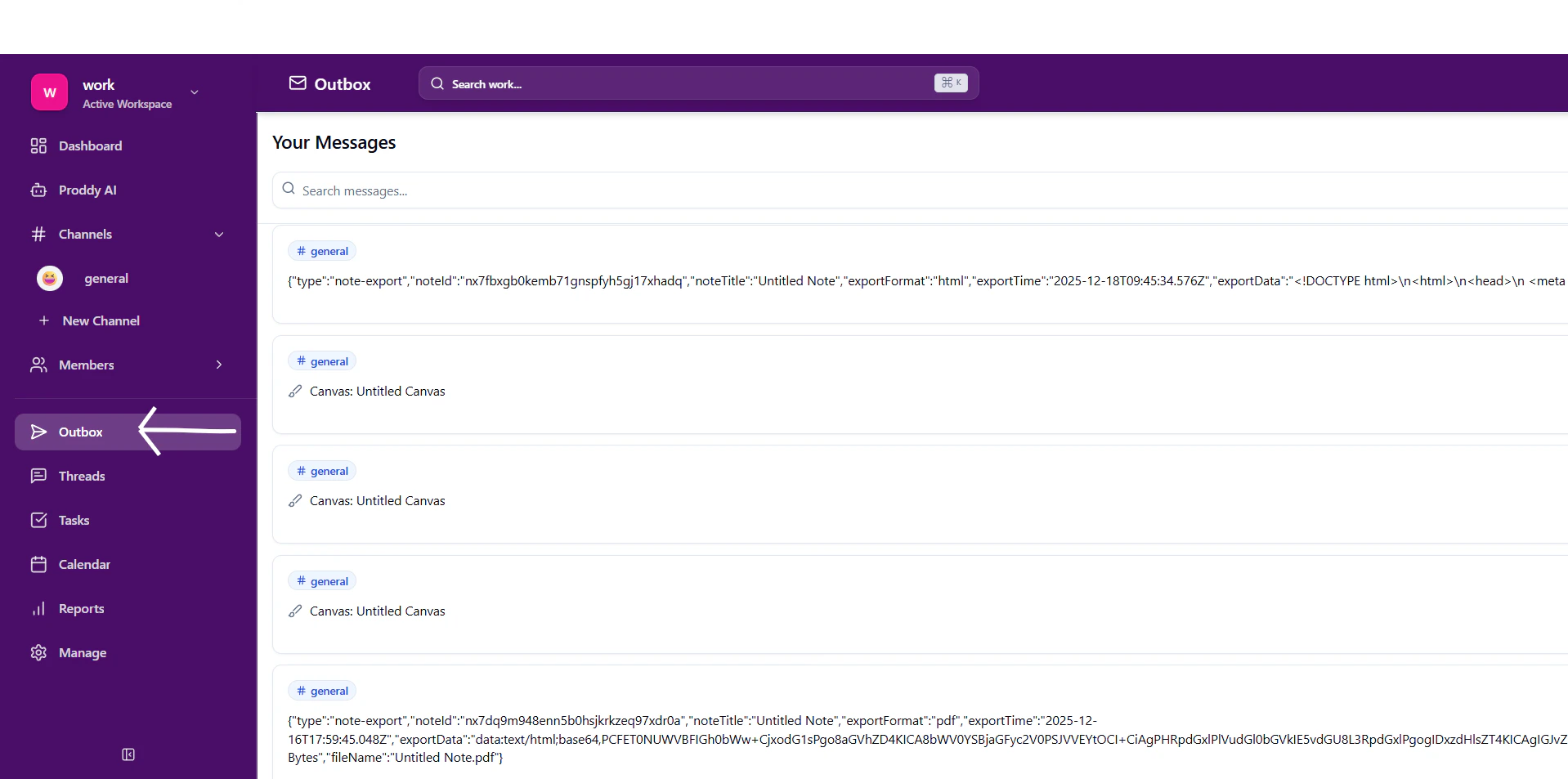
Each entry shows:
* Source channel (e.g., #general)
* Content preview
* Timestamp (date & time)
## **Access the Outbox**
1. Open the **Proddy workspace**.
2. Click **Outbox** from the left sidebar.
3. The Outbox opens showing all sent messages and activities.
 ## **Viewing messages in Outbox**
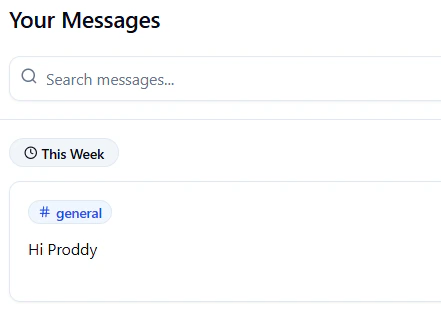
* Messages are grouped by **time periods** such as:
* This Week
* Earlier
* Each item displays:
* Channel name
* Message or exported content preview
* Date and time sent
This makes it easy to audit or revisit previously sent information.
## **Viewing messages in Outbox**
* Messages are grouped by **time periods** such as:
* This Week
* Earlier
* Each item displays:
* Channel name
* Message or exported content preview
* Date and time sent
This makes it easy to audit or revisit previously sent information.
 ## **Filtering Outbox Messages**
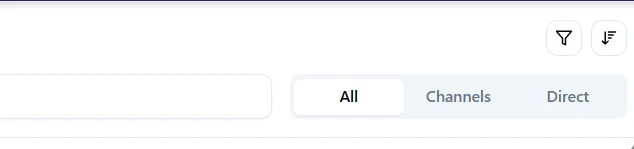
Use the filters at the top to refine what you see:
* **All** – Shows all sent messages
* **Channels** – Shows messages sent to channels
* **Direct** – Shows messages sent via direct messages
This helps you quickly find messages based on where they were sent.
## **Filtering Outbox Messages**
Use the filters at the top to refine what you see:
* **All** – Shows all sent messages
* **Channels** – Shows messages sent to channels
* **Direct** – Shows messages sent via direct messages
This helps you quickly find messages based on where they were sent.
 ## **Search messages in Outbox**
1. Use the **Search messages…** bar at the top.
2. Enter keywords related to:
* Message content
* Channel name
* Export type
The list updates in real time to show matching entries.
## **Search messages in Outbox**
1. Use the **Search messages…** bar at the top.
2. Enter keywords related to:
* Message content
* Channel name
* Export type
The list updates in real time to show matching entries.
 ## **Export-related entries in Outbox**
When you export a note or document:
* An entry is automatically created in the Outbox
* The export metadata (format, file name) is logged
* Large exports may show encoded or raw content previews
This helps users confirm exports were triggered successfully.
## **Export-related entries in Outbox**
When you export a note or document:
* An entry is automatically created in the Outbox
* The export metadata (format, file name) is logged
* Large exports may show encoded or raw content previews
This helps users confirm exports were triggered successfully.
 ## **Why Outbox is useful**
* Central history of sent content
* Easy debugging for exports and automations
* Transparency across chats, notes, canvas, and calendar
* Helpful for audits and collaboration tracking
## **Why Outbox is useful**
* Central history of sent content
* Easy debugging for exports and automations
* Transparency across chats, notes, canvas, and calendar
* Helpful for audits and collaboration tracking