> ## Documentation Index
> Fetch the complete documentation index at: https://docs.proddyai.app/llms.txt
> Use this file to discover all available pages before exploring further.
# Tasks
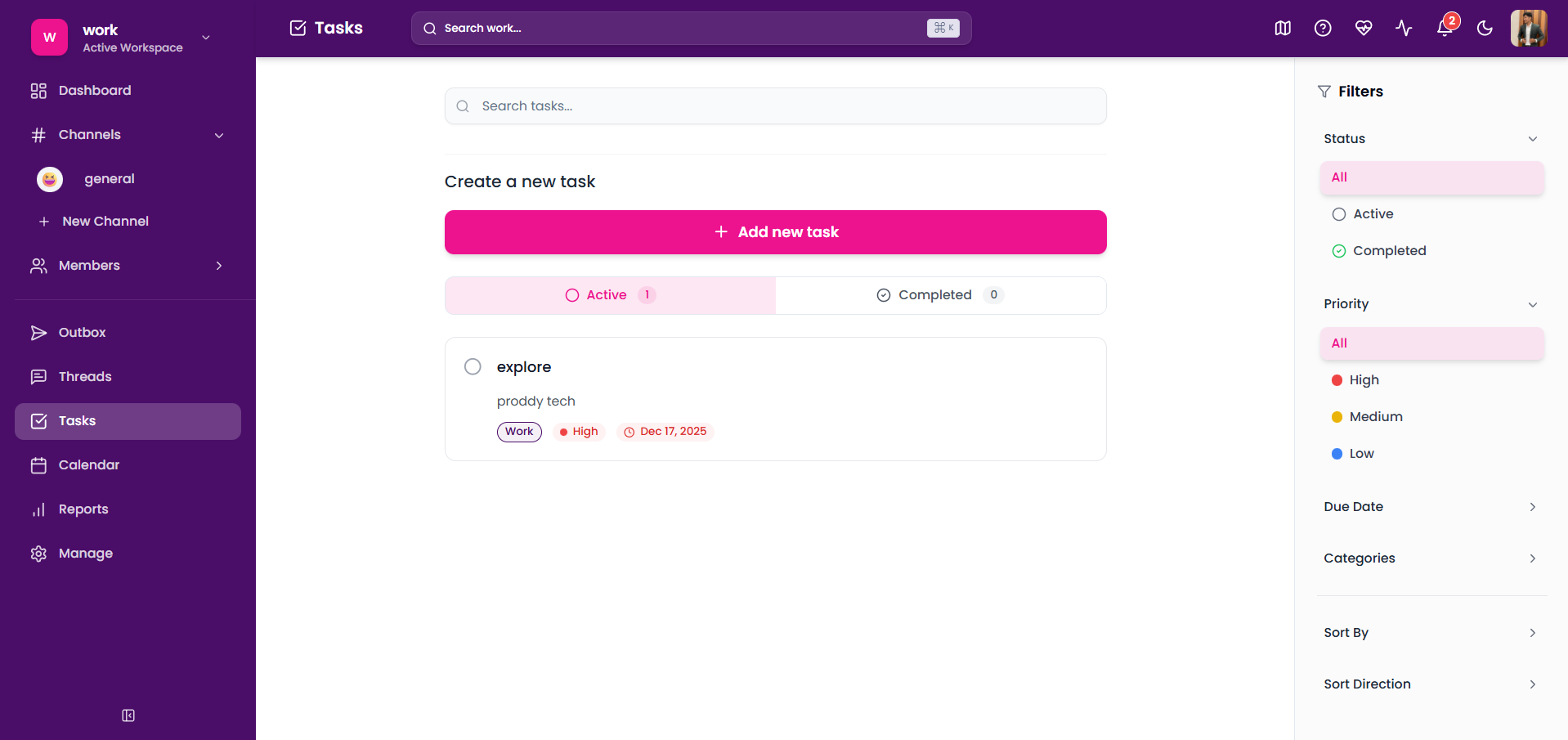
> Tasks in Proddy help teams track work, set priorities, assign ownership, and manage deadlines in an organized way. Tasks allow users to break down work into actionable items and monitor progress from creation to completion.
## **What you’ll need**
* Access to a Proddy workspace
* Permission to create and manage tasks
## **Where to find Tasks**
1. Open your Proddy workspace.
2. Click on **Tasks** from the left sidebar.
 ## **How to create a task**
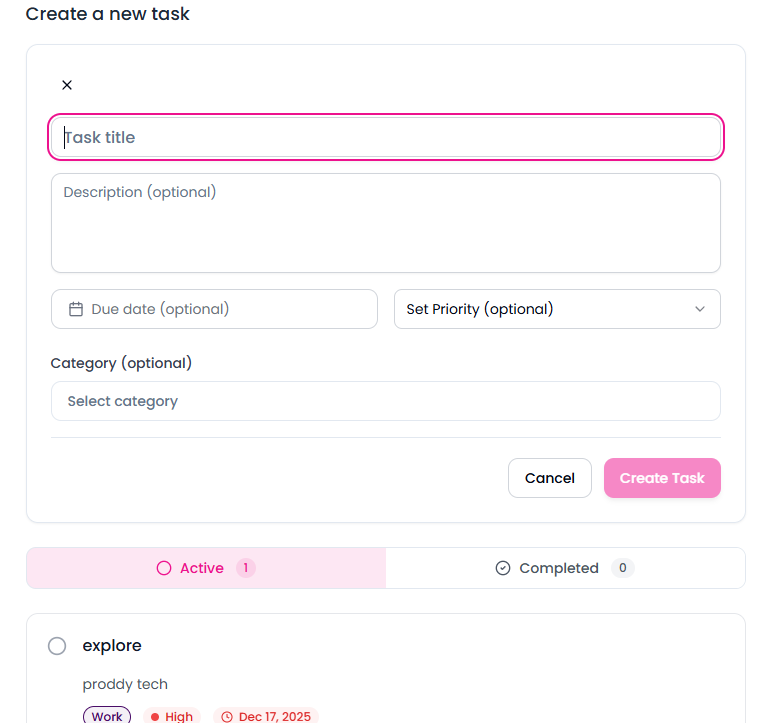
1. Open **Tasks** from the left sidebar.
2. Click **Add new task**.
3. Enter the **task title**.
4. (Optional) Add description, due date, priority, and category.
5. Click **Create Task** to save.
## **How to create a task**
1. Open **Tasks** from the left sidebar.
2. Click **Add new task**.
3. Enter the **task title**.
4. (Optional) Add description, due date, priority, and category.
5. Click **Create Task** to save.
 ## **What happens after creating a task**
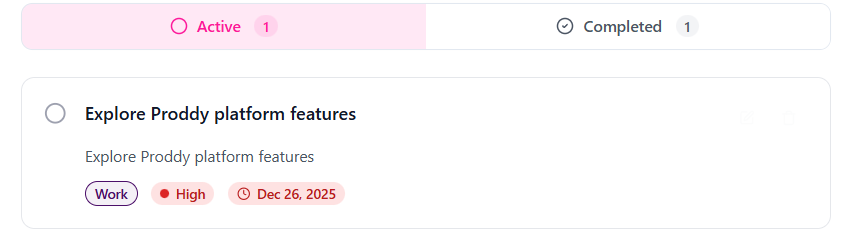
* The task appears under the **Active** tab.
* Tasks can later be marked as completed.
## **Viewing task status**
Tasks are automatically grouped into:
* **Active**
* **Completed**
You can switch between these views using the status tabs at the top.
## **What happens after creating a task**
* The task appears under the **Active** tab.
* Tasks can later be marked as completed.
## **Viewing task status**
Tasks are automatically grouped into:
* **Active**
* **Completed**
You can switch between these views using the status tabs at the top.
 ## **Managing tasks**
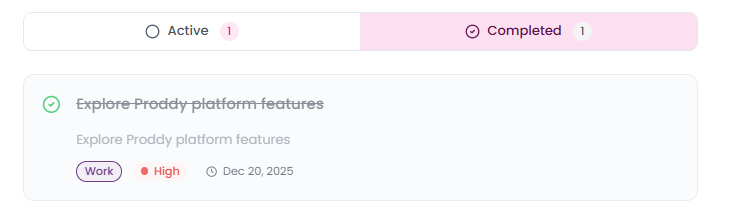
**Mark a task as completed**
1. Navigate to the **Tasks** page.
2. Click the **checkbox** on the left side of a task.
The task is marked as completed and automatically moves from **Active** to the **Completed** section.
## **Managing tasks**
**Mark a task as completed**
1. Navigate to the **Tasks** page.
2. Click the **checkbox** on the left side of a task.
The task is marked as completed and automatically moves from **Active** to the **Completed** section.
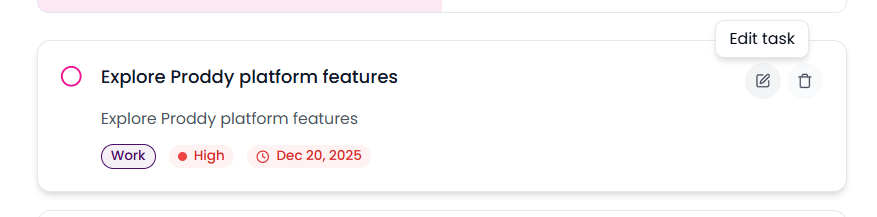
 ### **Edit a task**
1. Click on the task you want to update.
2. Modify task details such as:
* Task title
* Priority
* Due date
* Category
3. Changes are saved automatically and reflected in the task list.
### **Edit a task**
1. Click on the task you want to update.
2. Modify task details such as:
* Task title
* Priority
* Due date
* Category
3. Changes are saved automatically and reflected in the task list.
 ## **Filter and Sort Tasks**
Use the Filters panel on the right side of the Tasks page to quickly find and organize tasks.
### **Filter Tasks**
You can filter tasks using the following options:
* Priority – Filter tasks by High, Medium, or Low priority
* Due Date – Show tasks that are Overdue, Due Today, Upcoming, or with No due date
* Categories – Narrow tasks by categories such as Work, Personal, Urgent, Learning, or Ideas
### **Sort Tasks**
Organize tasks using sorting options:
* Sort By – Sort tasks by Date Created, Due Date, or Priority
* Sort Direction – Choose between Ascending or Descending order
\
**Notes**
* Completed tasks can be reviewed anytime from the **Completed** tab.
* Filters help quickly find tasks based on urgency or deadlines.
* Sorting makes it easier to prioritize work.
## **Filter and Sort Tasks**
Use the Filters panel on the right side of the Tasks page to quickly find and organize tasks.
### **Filter Tasks**
You can filter tasks using the following options:
* Priority – Filter tasks by High, Medium, or Low priority
* Due Date – Show tasks that are Overdue, Due Today, Upcoming, or with No due date
* Categories – Narrow tasks by categories such as Work, Personal, Urgent, Learning, or Ideas
### **Sort Tasks**
Organize tasks using sorting options:
* Sort By – Sort tasks by Date Created, Due Date, or Priority
* Sort Direction – Choose between Ascending or Descending order
\
**Notes**
* Completed tasks can be reviewed anytime from the **Completed** tab.
* Filters help quickly find tasks based on urgency or deadlines.
* Sorting makes it easier to prioritize work.