> ## Documentation Index
> Fetch the complete documentation index at: https://docs.proddyai.app/llms.txt
> Use this file to discover all available pages before exploring further.
# Feedback
> Here at Proddy AI we put customers at the front. Your feedback helps us make Proddy AI work better for everyone. We value your feedback on the features in Proddy and what you would like to see in Proddy AI.
## **Feedback**
To send feedback or request new features, click on the map icon on the top right of the workspace in the navigation bar.
 ### **Documentation**
To find documentation and help regarding Proddy AI, click on the help icon on the top right of the workspace in the navigation bar.
### **Chat Support**
To avail Chat Support in Proddy AI, click on the chat support icon on the top right corner of the workspace in the navigation bar
You can either select from the set of questions or chat with us in the chat section available at the bottom of the Support Popup Menu.
### **Documentation**
To find documentation and help regarding Proddy AI, click on the help icon on the top right of the workspace in the navigation bar.
### **Chat Support**
To avail Chat Support in Proddy AI, click on the chat support icon on the top right corner of the workspace in the navigation bar
You can either select from the set of questions or chat with us in the chat section available at the bottom of the Support Popup Menu.
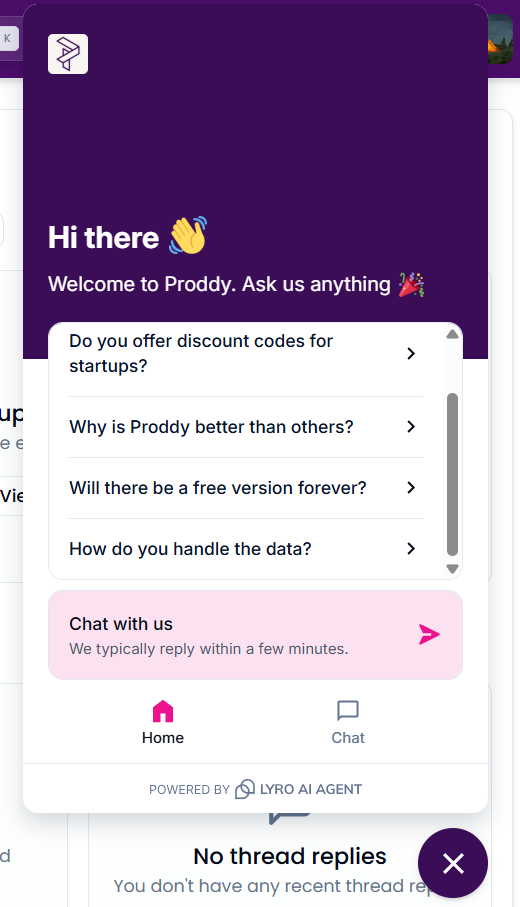 You can also open Chat Support by clicking on the messages icon at the bottom right corner in the workspace.
\
**System Status**
Proddy maintains complete transparency. It shows you all components’ uptime for your convenience.
To check system status, including databases and AI features uptime, click on the system status icon
You can also open Chat Support by clicking on the messages icon at the bottom right corner in the workspace.
\
**System Status**
Proddy maintains complete transparency. It shows you all components’ uptime for your convenience.
To check system status, including databases and AI features uptime, click on the system status icon
 on the top right corner of the workspace.