Accessing Members
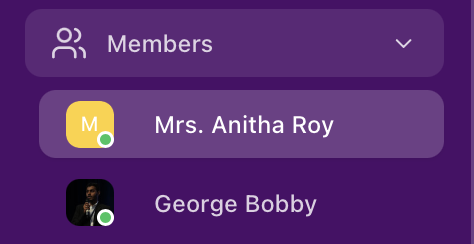
To view workspace members:- Open the workspace.
- Click on Manage from the left sidebar.
- Select Members.
Adding Members
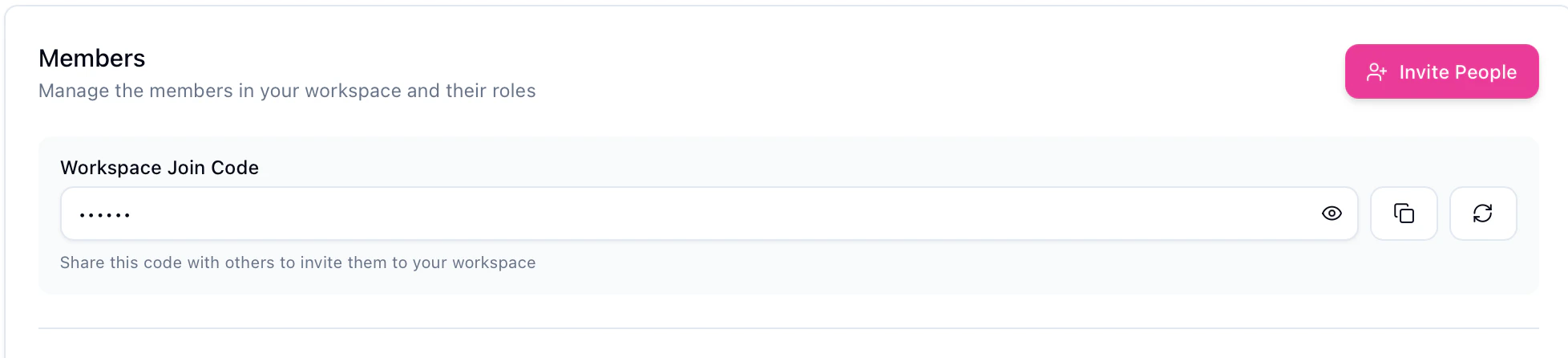
Accessing the Invite Option To invite members:- Open the workspace.
- Click on Manage from the left sidebar.
- Select Members.
- Click on the Invite People button.
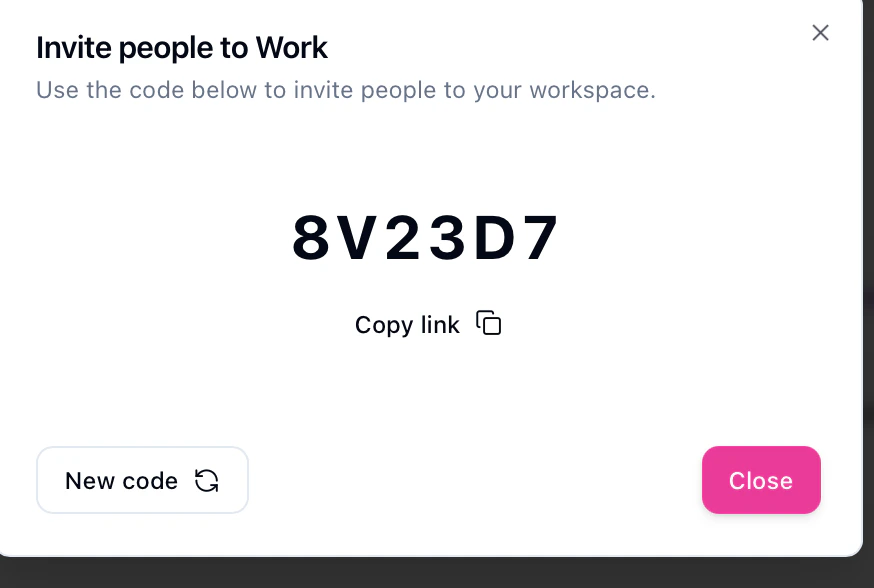
- An invite dialog box will appear with link and code
- Copy the workspace join code and invite link.
- Share the code and link with the person you want to invite.
Removing a Member
To remove a member from the workspace:- Navigate to Manage → Members.
- Locate the member you want to remove.
- Click on the delete (trash) icon next to the member.
- Confirm the action (if prompted).
Changing a Member’s Role
To change a member’s role:- Open the workspace.
- Navigate to Manage → Members.
- Locate the member whose role you want to change.
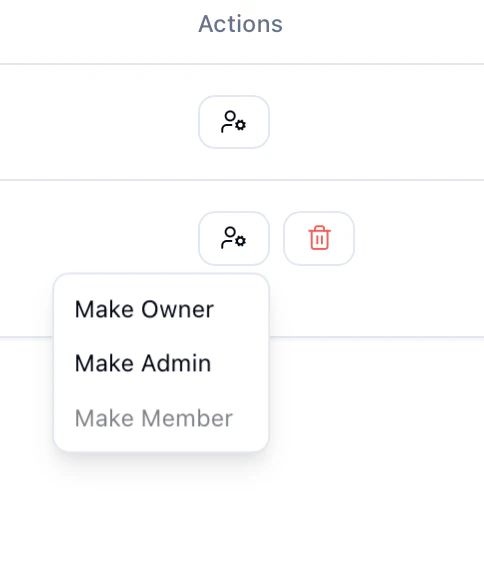
- Click on the role/action menu next to the member.
- Select one of the available options:
- Make Owner
- Make Admin
- Make Member
Starting a Direct Message
To start a direct message with a member:- Locate the Members list in the left sidebar.
- Click on the member’s name you want to message.
- A direct message chat will open automatically.